Posts

Powering Up Your Analytics: Exploring Power Query in Power BI

Image
Data is a valuable asset that has a profound impact on almost every aspect of modern life. Its proper collection, analysis and application can promote innovation, improve efficiency and solve complex challenges in various sectors. In data processing, ETL is a comprehensive process that includes data extraction, transformation, and loading, while Power Query is a specific tool that facilitates the "extract" and "transformation" aspects of ETL, allowing data to be collected and analyzed. Permission is granted to process. And reporting. is ready. It becomes easy to do this. Microsoft's ecosystem of products. Power Query is a data transformation and data preparation engine. Power Query is available in Microsoft Excel and Power BI. Power Query provides a user-friendly and intuitive interface for data professionals and analysts to access and manipulate data from various sources without the need for extensive coding or scripting. It allows users to connect to a wide ra...

PCF vs. Web Resources: Choosing the Right Extensibility Tool for Dataverse

Image
Extensibility refers to the ability to be extended or augmented beyond the default capabilities of the platform. This involves customization but also includes more advanced techniques, such as coding, integration with external services, and the use of custom components. In the context of Power Platform and Dynamics CRM, the term "extend behavior" refers to the ability to customize and extend the functionality of the platform to meet specific business needs. Extensibility often requires technical skills, such as coding in JavaScript, C#, or using tools like Azure Logic Apps and Power Automate for complex integrations. Customization  is a subset of extensibility. Customization involves configuring and modifying existing elements within the platform to suit specific business needs. Extensibility, on the other hand, covers a wide range of functions and techniques, including customization and more advanced development and integration tasks, to extend the capabilities of the Power ...

Power BI Dashboards vs Reports: Understanding the Key Differences

Image
Analytics in Power BI refers to the process of examining, cleaning, transforming, and modeling data to find useful information, draw conclusions, and help in decision making. Power BI provides a wide range of tools and features to perform a variety of analyzes on your data. Using these analytics capabilities, you can turn your data into actionable insights and create engaging reports and dashboards in Power BI. The specific techniques and tools you use will depend on your data and business needs. In the context of analytics and data visualization, "reports" and "dashboards" are two different ways of presenting information, each with its own purpose and characteristics Reports: Reports are essential in data analysis because they bridge the gap between data analysis and decision making, facilitate communication, support accountability and transparency, and drive continuous improvement. Reports provide a structured and organized way of presenting data, making it easier...

Power BI's Security Arsenal: Row-Level Security Explained

Image
Security in analytics reports is essential to protect data, maintain trust, comply with regulations, and make informed decisions. It includes various measures for access control, data privacy, data integrity and security of information throughout its lifecycle. Row-level security (RLS) in Power BI is a security feature that allows you to restrict data access at the row level based on user roles and rules defined within the Power BI model. This feature ensures that users only see data that is relevant to their role, preventing them from accessing unauthorized or sensitive data. Row-level security (RLS) is a valuable feature in Power BI that allows you to restrict data access at the row level based on user roles and filters. Here are some tips and tricks to effectively implement RLS in Power BI: RLS helps organizations maintain tight control over data access. This ensures that sensitive information is only accessible to authorized users, reducing the risk of data breaches or unauthoriz...

Power Platform : Types of Accounts and Identities

Image
The development of computer networking and the Internet in the 1990s led to the development of more sophisticated user account systems. Throughout this history, the role of user accounts has evolved from simple login credentials to comprehensive digital identities that provide access to a wide range of digital resources and services. Nowadays, everyone and every device has an identity that can be used to access resources. By definition, identity is the way people and things are identified on our computer networks and in the cloud. User account describes who you are, but it is not enough to give you access. When combined with the password, which should be known only to that user, it allows access to our systems. User account and password together are a form of authentication. In the context of Power Platform and Dynamics CRM (Customer Relationship Management), a user account refers to an account that represents an individual user or individual that interacts with the platform or CRM sys...

MB260 :Microsoft Customer Data Platform

  Design Customer Insights solutions Dynamics 365 Customer Data Platform

Host Object Demystified: Your Power Apps Companion

Image
Host objects are essential for interacting with the hosting environment and accessing its functionalities and resources.  These are often used to bridge the gap between the programming language used in the code and the native features of the hosting environment. In the Canvas Apps, a host object generally refers to an object or component provided by the hosting environment in which a program is executed. In the recent update, Microsoft provides a new object which helps in developing scalable and robust apps which is known as "Host" object. The "host" provides information about the web browser and helps us understand the current hardware and environment the app is running in. There are some properties that may help to understand about the host environment: BrowserUserAgent Property : BrowserUserAgent is the text property that contains the complete user agent string that the browser user detects itself when running the app. OSType Property : The OSType property provid...

Dynamics 365 CRM : Assign vs Share

Image
  In Dynamics 365, both "Assign" and "Share" are actions that control the ownership and access to records, but they serve different purposes: Assign: "Assign" refers to the process of changing the ownership of a record from one user or team to another user or team. When you assign a record, the ownership and associated security permissions are transferred from the original owner to the new owner. The original owner will lose access to the record, and the new owner will gain full access, including the ability to edit and delete the record. Share: "Share" refers to the process of giving specific users or teams access to a record without changing its ownership. When you share a record, you can grant Read, Write, Append, Append To, or Assign permissions to other users or teams. Sharing allows you to provide additional access to specific records for individuals or groups who are not the primary owners of the records. Sharing is commonly used when you ...

Canvas Apps: App vs Screen

Image
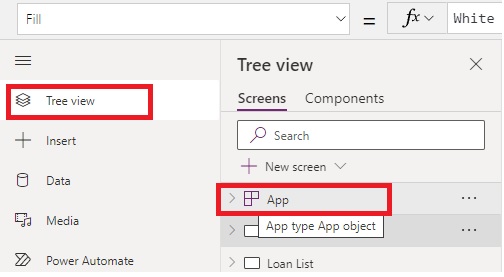
 In Power Apps canvas apps, there are two main concepts: "app" and "screen." Here's a breakdown of the difference between the two:   App : The "app" represents the entire application that you build using Power Apps. It serves as a container for all the components of your canvas app, including screens, controls, data sources, and logic. The app defines the overall structure and environment of your canvas app. You can set app-level properties, such as the app's name, icon, and version number.  The app can have multiple screens that users can navigate between.   Screen : A "screen" represents a distinct interface or view within your canvas app. It is a specific page or section of the app that users interact with. Each screen typically focuses on a specific task or functionality within the app. You can design screens using various controls, layout elements, and styling options to create the desired visual appearance and user...

Deep Dive into App.StartScreen and App.OnStart: Leveraging Powerful Navigation and Initialization in Canvas Apps

Image
Canvas apps provide a versatile and low-code approach to app development, enabling users to build custom applications quickly and easily. They are suitable for a wide range of scenarios, such as data collection forms, process automation, data visualization, and more. Microsoft continues to update and enhance the capabilities of canvas apps, and new features and improvements are released on a regular basis. Canvas apps primarily use a declarative approach, which allows us to design the app's user interface and behavior using properties, formulas, and expressions. However, we can also take advantage of imperative-like functions and operators for more fine-grained control and inclusion of complex logic when needed. At the top of the tree pane in canvas apps, there is an object that provides information about the currently running app and controls over the app's behavior. "App" refers to an entire application that we build using the Power Apps canvas app platform. It repr...